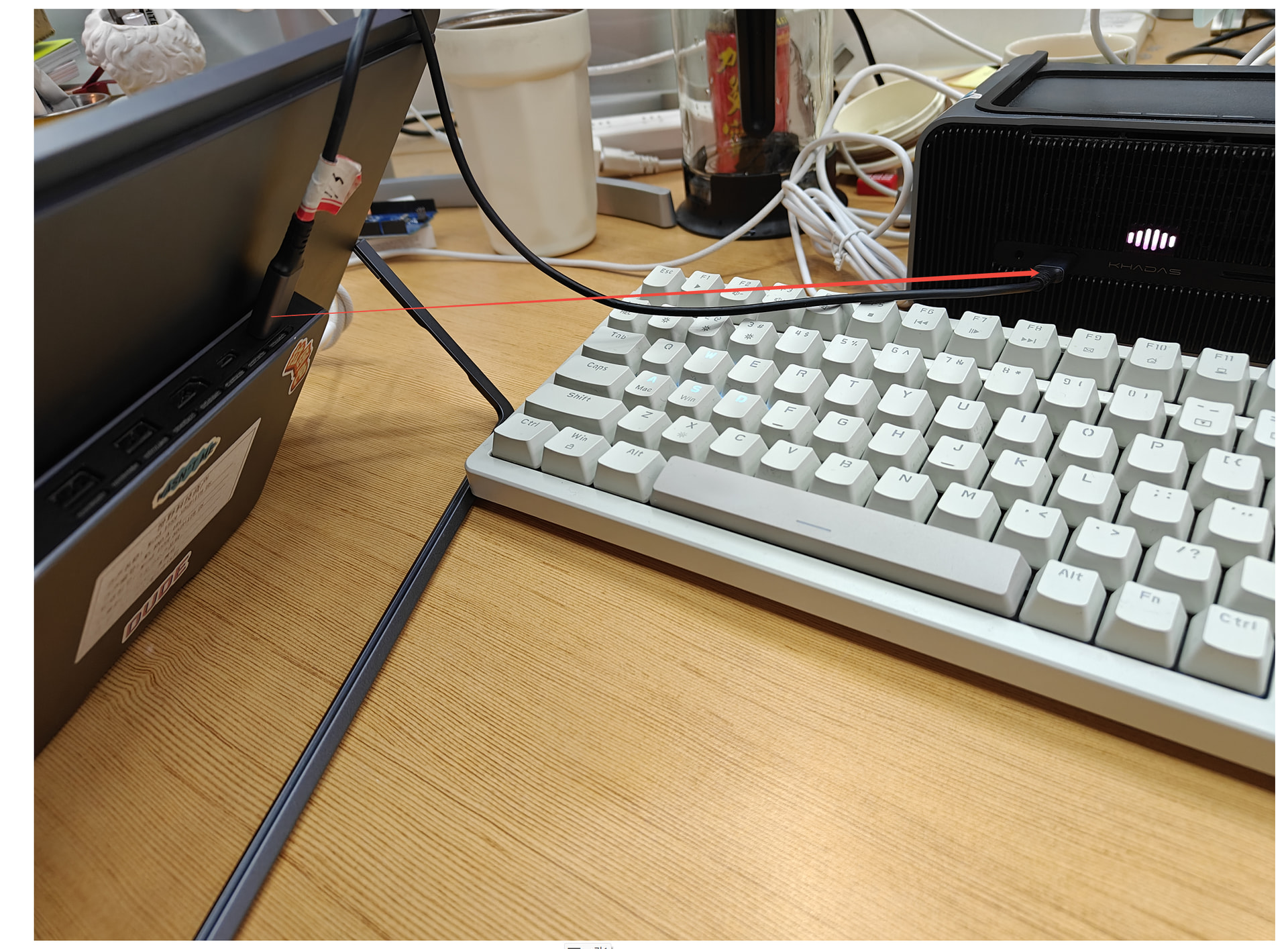
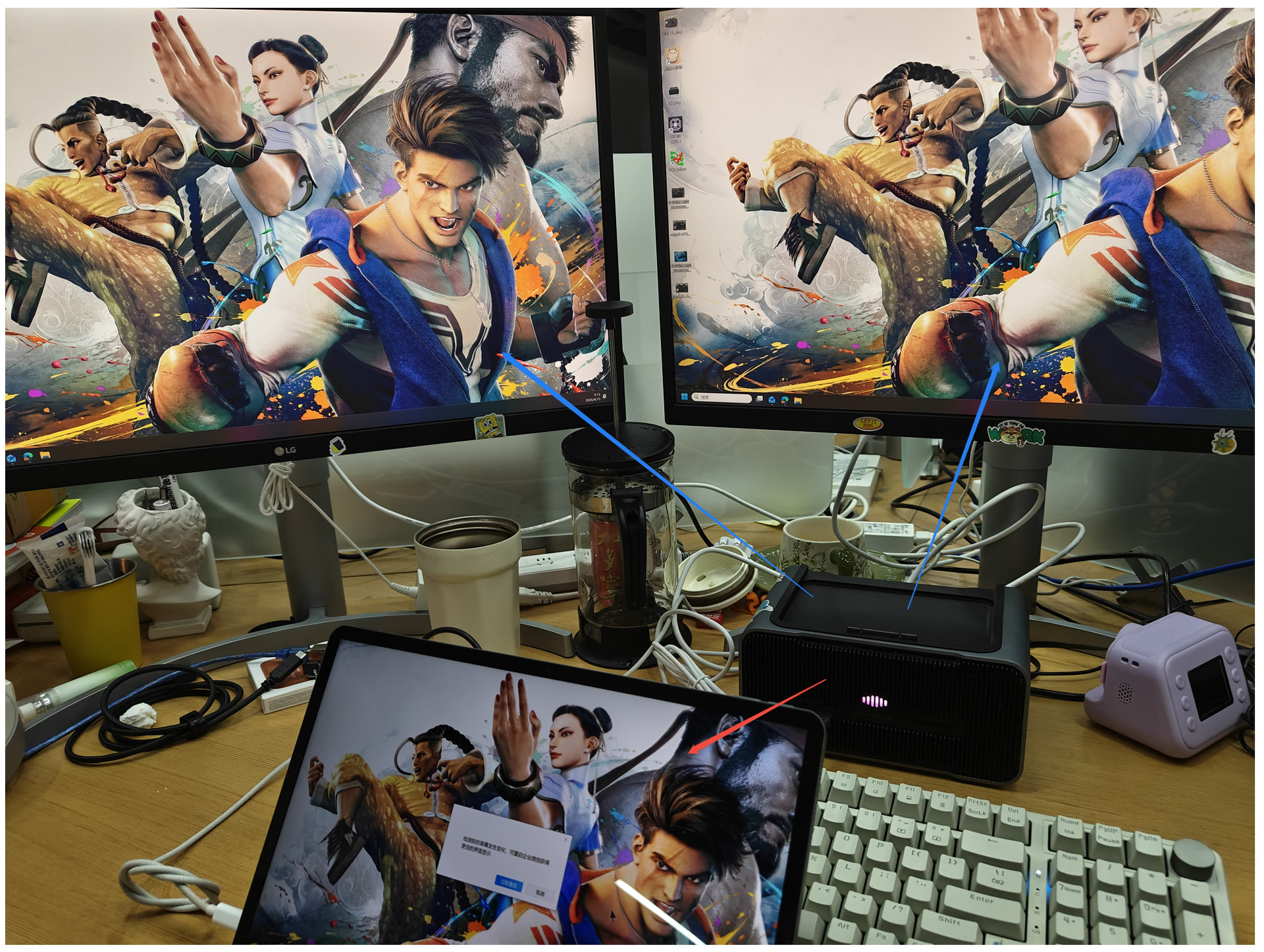
I’m going to share two ways that allow you to use xPlay and Graphics at the same time. Just a heads-up—please ignore my messy desktop.
我将分享两种方式,让你可以同时使用xPlay和Graphics。提前说好,请忽略我凌乱的桌面。
Method 1: Install the Mind on the Graphics, and use a USB 4 cable or a Thunderbolt cable (or make sure your USB-C to USB-C cable supports DisplayPort functionality—I know that’s a mouthful, but blame the complicated USB-IF). Connect the Mind (via its Thunderbolt port) to the xPlay (via its USB-C In port). The xPlay can then be used as an additional display.
**第一种方式:**将Mind安装在Graphics上,使用USB 4线材或者雷电线材(或者确保USB-C to USB-C线材具备DP功能,我知道这样说很冗长,这都怪复杂的USB联盟)将Mind(雷电接口)和xPlay(USB-C In)连接起来,xPlay就可以作为额外的显示器使用。
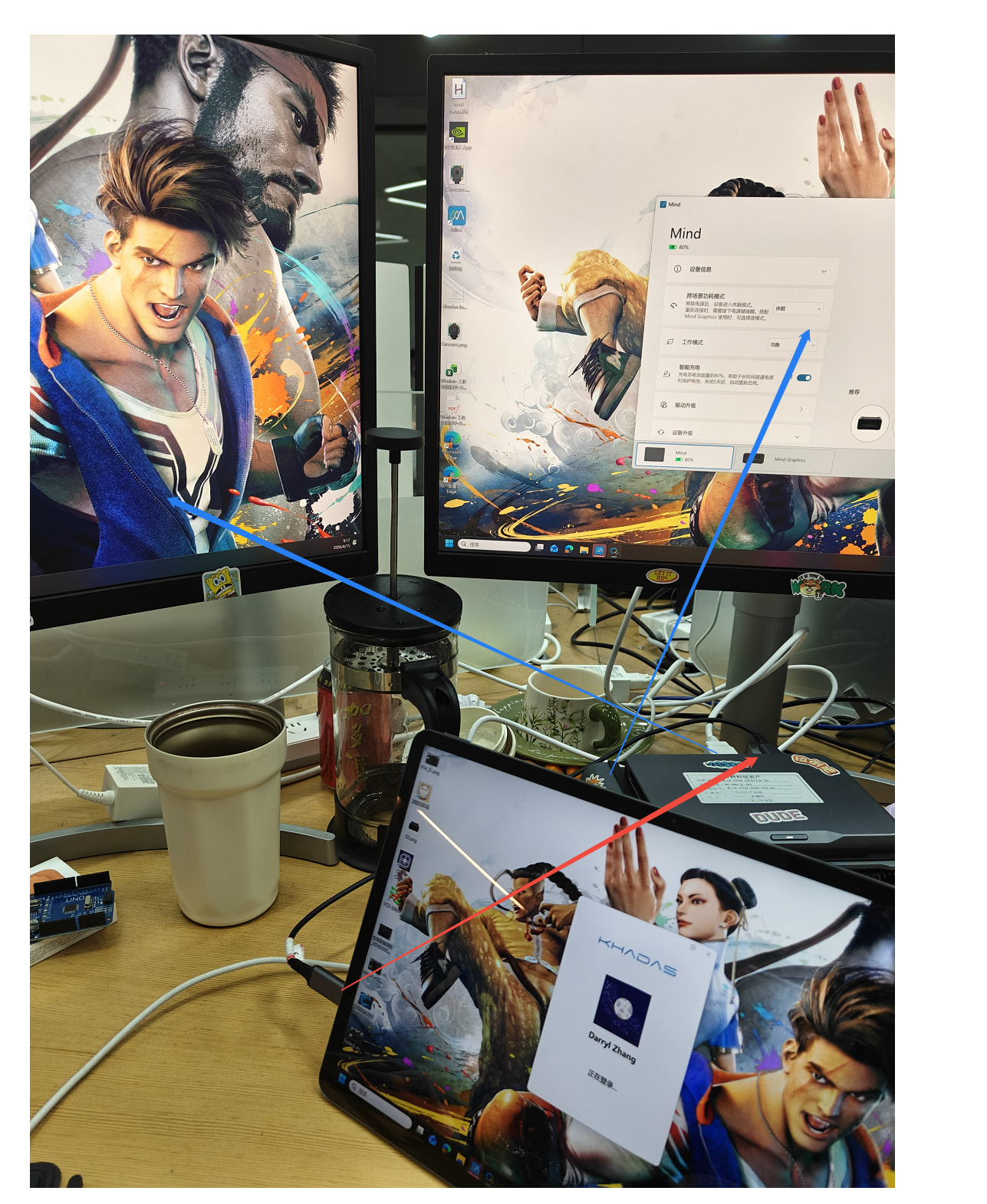
Method 2: Install the Mind on the xPlay, and use a full-featured USB 4 cable or a Thunderbolt cable (cable requirements are strict here to ensure sufficient bandwidth for the GPU). Connect the Mind (via its Thunderbolt port) to the Graphics (on Graphics 1, use the USB-C port on the front; on Graphics 2, use the USB-C port on the back). Make sure the NVIDIA driver is loaded properly, and the Graphics can then be used as an external GPU expansion.
**第二种方式:**将Mind安装在xPlay上,使用全功能USB4线材或者雷电线材(线材要求比较严格,因为要保障显卡带宽)将Mind(雷电接口)与Graphics(Graphics 1正面的USB-C接口,Graphics 2则是背面的USB-C接口)连接起来,确保NVIDIA驱动正常加载,Graphics就可以作为额外的显卡拓展使用。