Hey Darryl thanks for the response yet again lol. That description you gave of my situation is all correct except for the Intel cpu part. They are all AMD and I’ve tried to get the graphics working on pcs and laptops. No dice all around sadly, they all get stuck at the same step of installing drivers and the e-gpu not being recognized. Aside from that I can say that the device works perfect all ports are fully functional. I sometimes use it as a charging dock for my laptops due to the extra USB slots the khadas provides. It just seems to be not recognizing the video card aspect lol.
Thanks again for the response and assistance so far!
Mind Graphics, when used as an eGPU for other devices such as laptops or handhelds, needs to meet the following core requirements:
The other device must have a Thunderbolt 3/4 port.
A certified Thunderbolt cable is required (80% of past failure cases were due to substandard cables. If you are unsure about the authenticity of the Thunderbolt certification, you can check the cable certification information on the official Thunderbolt certification website).
Whether the other device has a dedicated graphics card.
Detailed connection steps:
Step 1: Preparation
Check Compatibility: Your laptop must have a Thunderbolt 4 or Thunderbolt 3 port.
Prepare the Cable: Use a certified Thunderbolt 4/3 cable.
Disconnect Other Devices: If Mind Graphics is already connected to Khadas Mind, please turn off the power of Mind and remove it from Mind Graphics.
Step 2: Connection and Driver Settings (Key Steps)
Connect Power: Use the included AC power cord to connect Mind Graphics to a power outlet (100V-240V). The indicator light will flash white.
Connect Laptop: Use the Thunderbolt cable to connect the Thunderbolt port of your laptop to the USB-C port on Mind Graphics.
Driver Handling (If Laptop Has a Dedicated GPU):
If your laptop has a dedicated graphics card, you need to enter the system Device Manager to uninstall or disable the dedicated graphics card driver of the laptop.
If your laptop does not have a dedicated graphics card (only using integrated graphics), you can skip this step.
Step 3: Install Graphics Card Driver
Download Driver: Visit the Khadas official website or NVIDIA official website to download the latest graphics card driver for RTX 4060 Ti.
Install Driver: Run the driver program and install it. The screen may flicker or go black during installation, which is normal.
Restart System: After the driver installation is complete, be sure to restart your laptop.
Note: Other devices do not need to install patches when connecting to Mind Graphics via Thunderbolt.
You can troubleshoot and follow the above key elements and connection steps to see if you can connect normally.
Thx for the response I’ve followed the steps still no luck. I only sometimes get this thing saying “display connection might be limited” but its not every time with the same thunderbolt cable. Was wondering if anyone had any input on the matter.
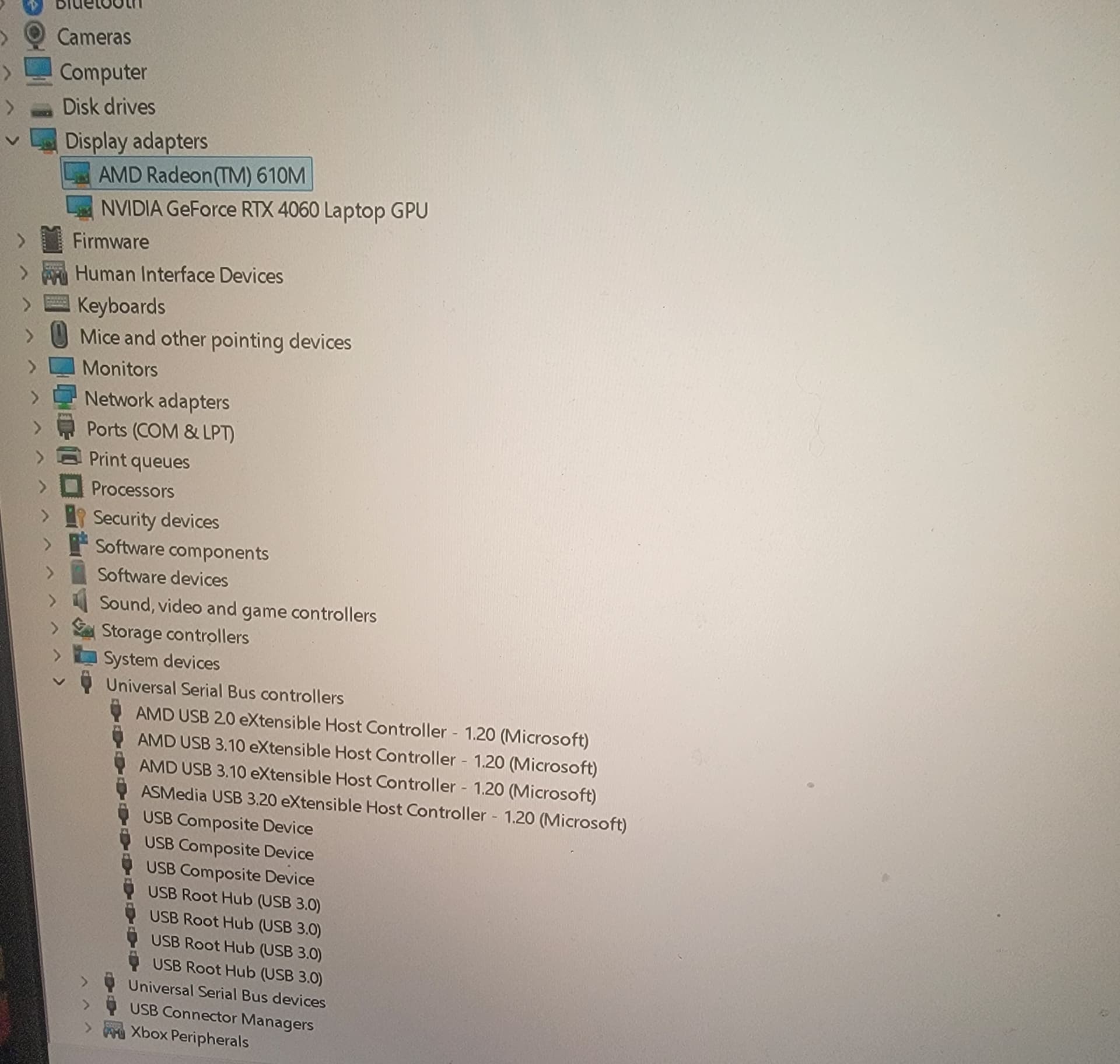
Hello, would you mind opening Device Manager to check the Universal Serial Bus controllers and display adapters, then provide a screenshot? This would be very helpful for us in analyzing the issue.
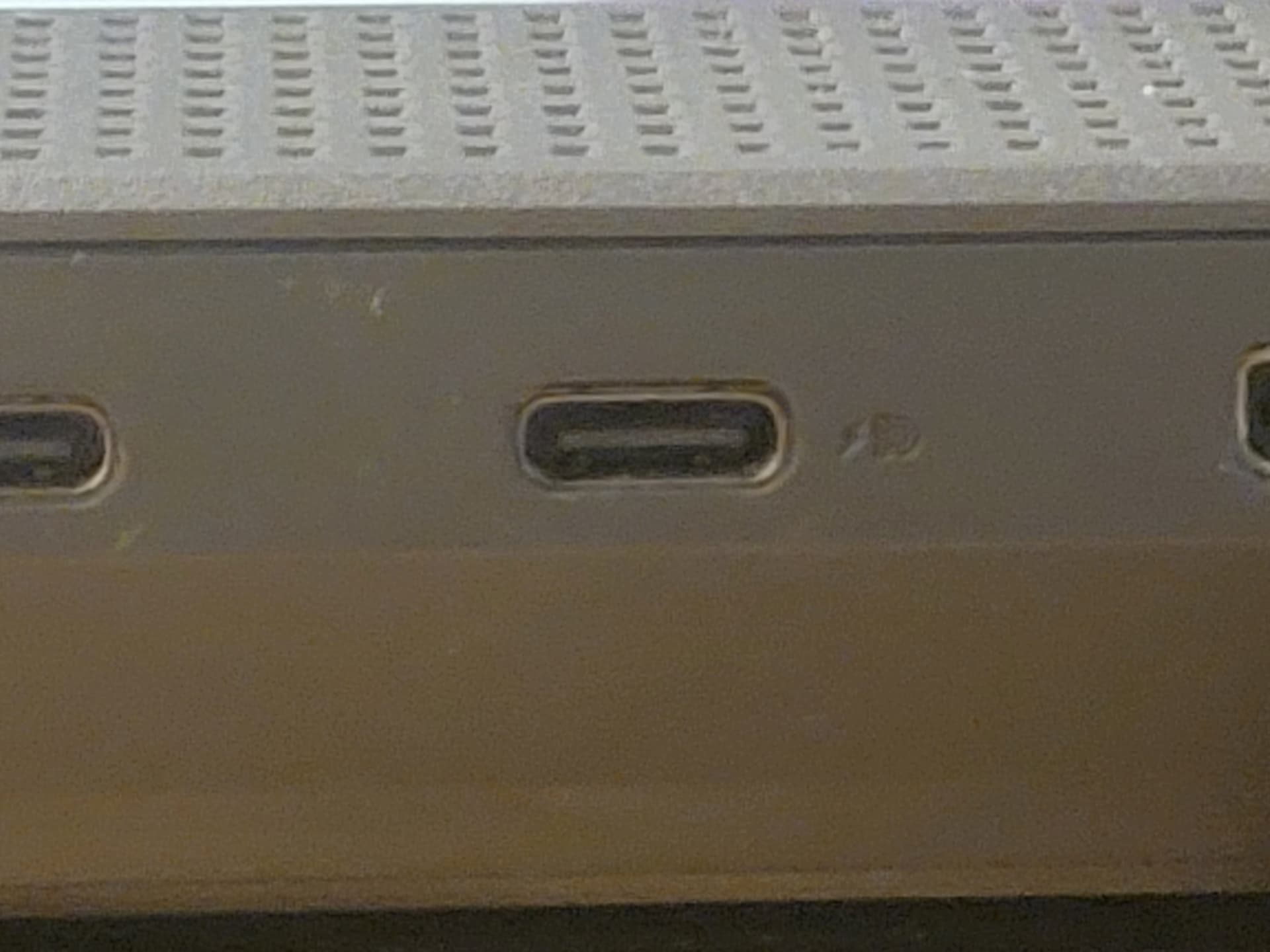
Based on the current appearance of the port, it does not support Thunderbolt or USB 4.0. Could you please provide the specific model of your laptop so we can make a more accurate assessment?
Thanks for the quick response!I thought that the lightning indicator meant it was thunderbolt compatible. I have another few pcs but im gonna take a look and prob send some more photes in a few days. Thank you for the help. I’ll just assume its not compatible on this laptop.
Thank you all very much for the persistent help! I’ve figured out the issue enough to get it working, and so far so good! The only thing I was missing was to enable pcie tunneling under my aptio bios, so I had a heck of a time trying to find it lol. Couldn’t find anything on it while searching the internet but I’ve finally made it after a year or 2 of just having this thing laying around.