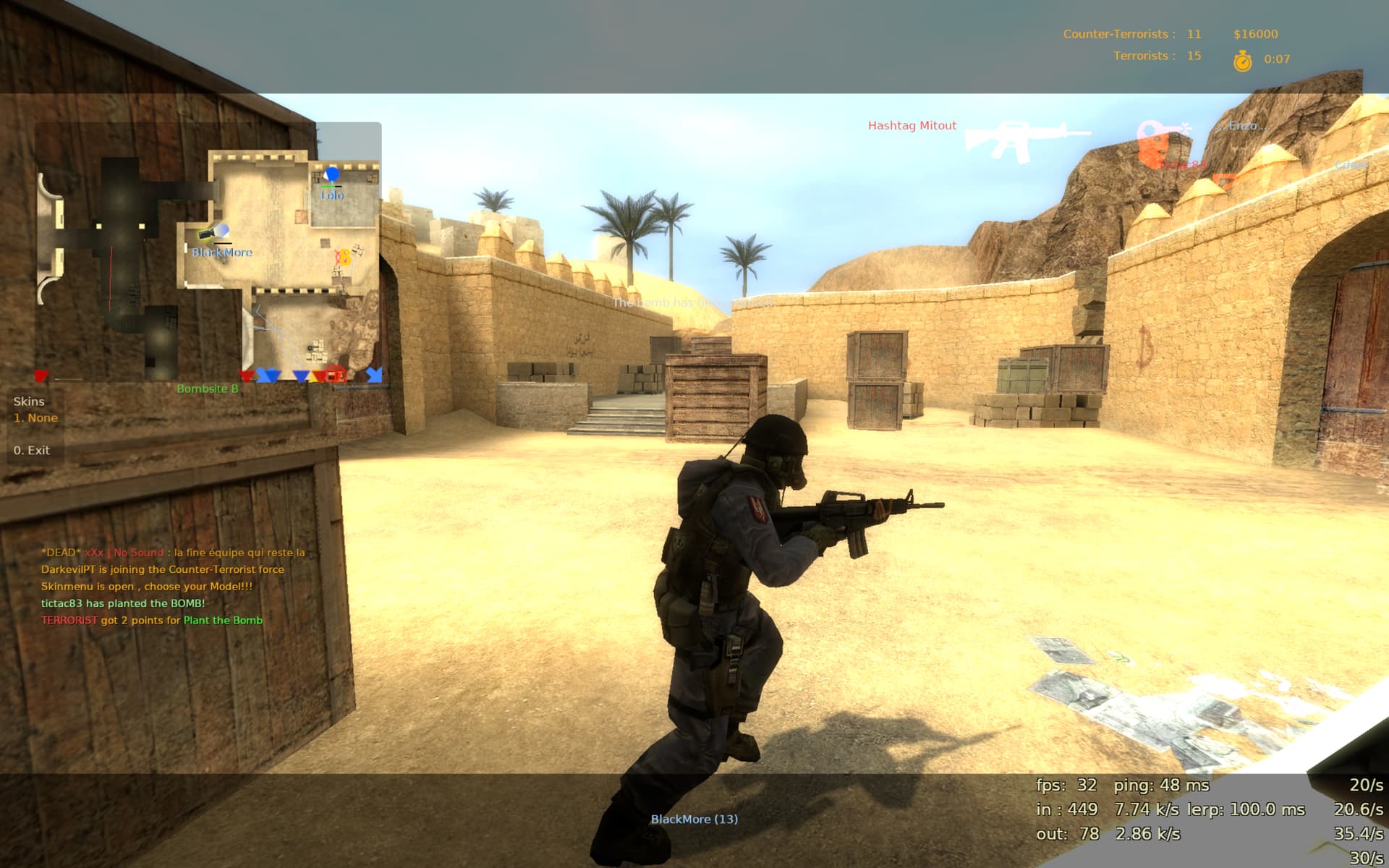
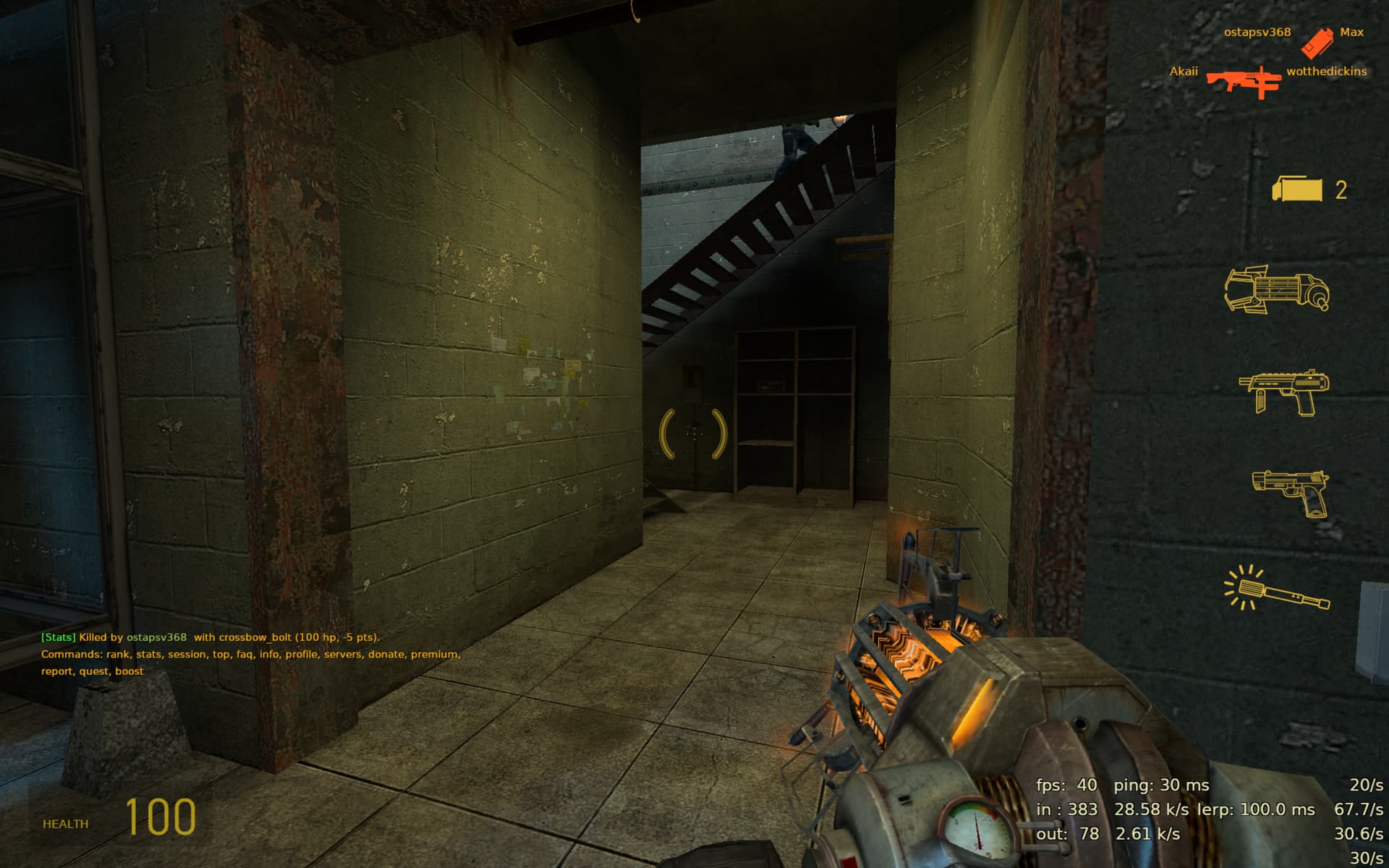
Steam Installation Tutorial
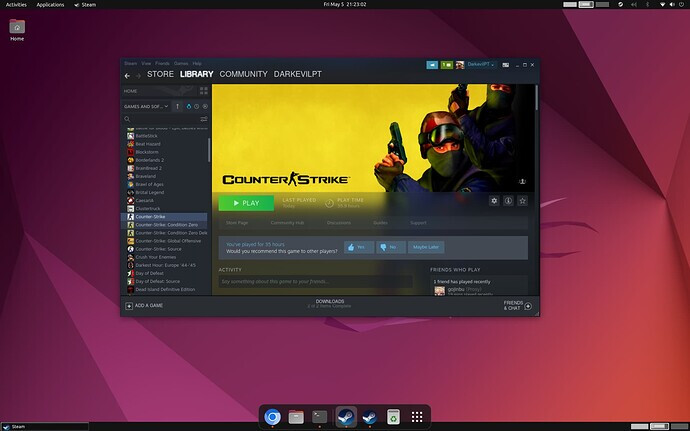
Installing Dependencies
First we need to install some dependencies that are required for Steam.
Find your DRK version here - box86/docs/COMPILE.md at master · ptitSeb/box86 · GitHub
for pkg in box86 box64; do
    sudo wget -q "https://ryanfortner.github.io/${pkg}-debs/${pkg}.list" -O "/etc/apt/sources.list.d/${pkg}.list" \
        && sudo wget -qO- "https://ryanfortner.github.io/${pkg}-debs/KEY.gpg" | sudo gpg --dearmor -o "/etc/apt/trusted.gpg.d/${pkg}-archive-keyring.gpg" \
        && echo "$pkg repository and key added successfully." \
        || echo "Error adding $pkg repository or key."
done

sudo dpkg --add-architecture armhf
sudo apt update

sudo apt install -y box86-rk3588 box64-rk3588 libfaudio0 \
    libc6:armhf libsdl2-2.0-0:armhf libsdl2-image-2.0-0:armhf \
    libsdl2-mixer-2.0-0:armhf libsdl2-ttf-2.0-0:armhf libopenal1:armhf \
    libpng16-16t64:armhf libfontconfig1:armhf libxcomposite1:armhf \
    libbz2-1.0:armhf libxtst6:armhf libsm6:armhf libice6:armhf \
    libgl1:armhf libxinerama1:armhf libxdamage1:armhf libncurses6:armhf \
    libgl1-mesa-dri:armhf curl:armhf mesa-vulkan-drivers
Cooking your boxes manually:
sudo apt install git build-essential cmake -y
git clone --depth 1 https://github.com/ptitSeb/box64
git clone --depth 1 https://github.com/ptitSeb/box86
cd ~/box64; mkdir build; cd build; cmake ../ -DRK3588=1; make -j$(nproc); sudo make install
cd ~/box86; mkdir build; cd build; cmake ../ -DRK3588=1; make -j$(nproc); sudo make install; cd
Install Steam
wget https://raw.githubusercontent.com/ptitSeb/box64/main/install_steam.sh
bash install_steam.sh
Run Steam
unset MESA_LOADER_DRIVER_OVERRIDE
unset VK_ICD_FILENAMES

export MESA_GL_VERSION_OVERRIDE=3.3
export MESA_GLSL_VERSION_OVERRIDE=330
export GALLIUM_DRIVER=panfrost
export BOX64_DYNAREC=1

box64 steam
Old times of lavacripe
export MESA_LOADER_DRIVER_OVERRIDE=lavapipe
export VK_ICD_FILENAMES=/usr/share/vulkan/icd.d/lvp_icd.json
steam
Installation is now finished EnJoy!

Install steam from the raspberry Pi-Apps store
wget -qO- https://raw.githubusercontent.com/Botspot/pi-apps/master/install | bash
They likely keep steam and boxes scripts updated.
    _   __                 ____     ______                   _
   / | / /(_)_____ ____   / __ \   / ____/____ _ ____ ___   (_)____   ____ _
  /  |/ // // ___// __ \ / / / /  / / __ / __ `// __ `__ \ / // __ \ / __ `/
 / /|  // // /__ / /_/ // /_/ /  / /_/ // /_/ // / / / / // // / / // /_/ /
/_/ |_//_/ \___/ \____//_____/   \____/ \__,_//_/ /_/ /_//_//_/ /_/ \__, /
    __     _                        _____              _         __/____/
   / /    (_)____   __  __ _  __   / ___/ _____ _____ (_)____   / /_
  / /    / // __ \ / / / /| |/_/   \__ \ / ___// ___// // __ \ / __/
 / /___ / // / / // /_/ /_>  <    ___/ // /__ / /   / // /_/ // /_
/_____//_//_/ /_/ \__,_//_/|_|   /____/ \___//_/   /_// .___/ \__/
                                                     /_/
git clone https://github.com/NicoD-SBC/armbian-gaming.git
cd armbian-gaming
/bin/bash ./armbian-gaming.sh
More info here: GitHub - NicoD-SBC/armbian-gaming: Tool to install gaming apps on Armbian Linux/Ubuntu/Debian arm64 · GitHub